Why Renaming a File Extension Does Not Solve Compatibility Issues
Renaming a file extension does not solve media compatibility problems. Rename a file to.mp4, and everyone can watch it - or not. Why renaming a file does nothing to the actual content or media capabilities of its player.
In this article
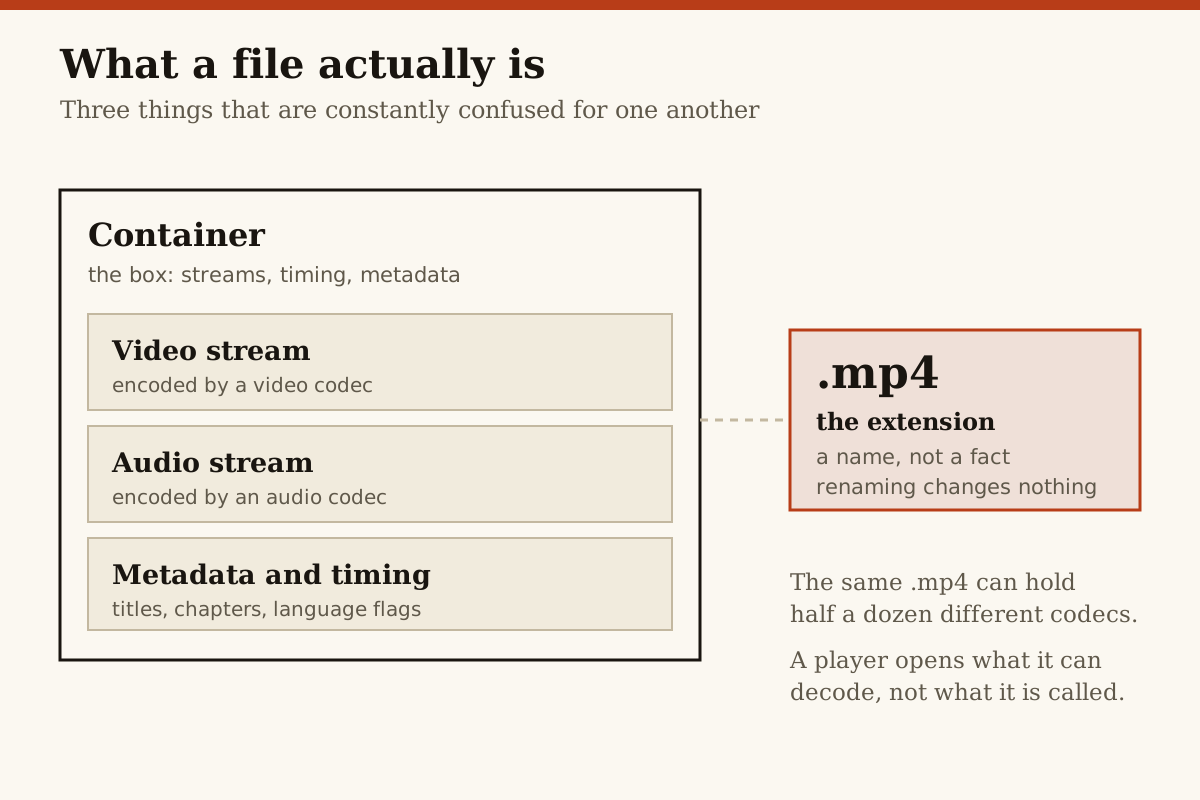
The reason is that a file's extension is just its label, not its identity. The.mp4 stamp on the outside only tells you the container format [TO VERIFY: a source explicitly stating that extensions are labels, not info about what's inside the file, ideally from an OS or browser source]. It does not specify the compression method, or codec, used for any of the multimedia signals or tracks packed inside.
Why Renaming a File Does Not Solve Compatibility Issues
The part of a file that the extension refers to, its container, is only packaging. Unlike a container, the full interior content is compressed in a way the player must recognise to play back the audio or video. The container itself carries no information about the codecs that compress the actual media streams inside. The player uses the container format to get at each stream, but uses the codec to decode and animate that stream, and without the right codec the stream might as well not be there at all.
What a Container Actually Holds
When you talk about changing a file ".mp4" extension, you are actually changing the container format. But what's important is what's inside. The container is a wrapper or multiplexer that handles the organisation, synchronization, and delivery of multiple streams of raw media data, like video, audio, and subtitle tracks. MPEG-4 Part 14, in other words MP4, can contain any combination of audio, video, text, subtitles, or images. MP4 is a container, not a codec, and whether you can open an mp4 file has nothing to do with the mp4 file type.
The container is more than a wrapper. Notably, it lays out a chronology, or timeline, for the streams inside. The container can specify that video in this stream starts at point A and lasts for this length, with the audio starting at point B and also running for so long, allowing the timeline to align the streams to the time the user fast-forwards or rewinds to.
A look at Adobe's support page shows why: "A container is the file that contains your video and audio streams as well as any closed caption files." That same linked documentation specifies the Timeline within, too: "[a container] tells the reader how to read the information inside, where to find each track (video, audio, etc.) and in what order to play them back, and how far apart each frame of video occurs, so they happen at the right time when played back."
The.mp4 container is a format, not a code. You can take all the codecs you have and try to store them in an mp4 file. The container itself doesn't care.
##
Why the Same Container Can Hide Different Codecs
The codec is not the container. The video or music codec inside an mp4 container carries the most important information: the data stream, or the meat of the files, compressed or encoded and hopefully decompressed correctly in the player you're using.
Here is where the problem is. The container botches things up, so you get everything all scrambled. For instance, thousands of.mov files use the avis MetaData, also known as 'mov', container. However, the audio or video codec for a.mov file could be. Any of the above codecs can be hidden inside a.mov container. Thus, the codec is not necessarily predictable.
The codec is more like a shipping container than the file. The.mov file is the shipping container, and the video encoding uses the codec like a tool that puts the boxes into the shipping container.
Here's another way to say it. Say you name a file "secret.mp4". That doesn't change what is inside. You're actually doing nothing when you say "file type is mp4", but changing the name of the "box" without modifying the product inside. And if the product inside your mp4 box is H.264 compressed video or ProRes 422, that would not change when you rename the box. This is the problem.
How Players Decide What Opens
And that's the rub. The player checks whether the container format, or the codecs, are supported. All players handle some container formats and present the list of available codecs. If a codec or container is not on the list, the player cannot read the file.
Adobe's site explains this perfectly in the opening section: "A codec is a protocol used for compressing data, especially audio and video data. a container could hold 3 different video streams, 5 different audio streams, and a caption stream. Each of these different video and audio streams could be compressed using different codecs. A codec is not the same thing as a container. Two files of the same container type could hold data compressed using different codecs."
You cannot open a.mov file with VLC, regardless of converting it to a "More Open" format. VLC may not open ProRes files. One reason why is because the codec or codecs aren't accurate for the platform.
This is how codec and container are different. A codec is software that allows a program to compress or decompress a video file, while the container 'holds' all the relevant data otherwise. While source data is compressed via a codec, it ultimately is packed into one file or another via a container.
How to Inspect the File You Actually Have
Renaming a file from Photoshop PSD to 640x480.mov does nothing else. It still is a Photoshop PSD that tries to load like [email protected]. Don't be fooled by the container. You managed to change the label, sure. But not what it is, only what it looks like.
So how do you tell what is really inside? There is only one true thing to do. That's to inspect the actual contents of the file. Renaming the file is the opposite of inspection, so don't do that.
The main tool that experts use to diagnose files is called ffprobe. FFmpeg, to evoke ffprobe. It is commonly used in industry to retrieve stream information, or 'media' stream information. FFmpeg is a computer program that enables users to convert the input codecs to different supported formats. FFmpeg is open-source software that requires no paid licensing fees from FFmpeg.org.
Inspecting the file using FFmpeg FFprobe allows users to easily retrieve various bits of information about the file they're working with. With one quick command-line instruction, you can gain information about the MP4 file's codec, its dimensions, duration, and more data you need.
Here's how you use FFmpeg FFprobe: "The ffprobe -i TO-INSPECT-FILE command provides information regarding the codec used, its bitrate, and where in the file it appears. -verbose provides additional information about the codec's key frame, dimension, bit depth, and frame type, and then provides the codec's key frame, dimension, frame rate, and quality information. The hexadecimal digits following the frame's timestamp represent encoded data. -hex displays the frame's timestamp in hexadecimal, where individual bytes are separated by colons and spaces, and consecutive bytes in the string are joined by colons."
Used correctly, FFmpeg FFprobe is a powerful tool for inspecting video files. Many users use it as an open-source tool. Using FFmpeg FFprobe, you can also watch your video files on any device that supports the codecs used in the file. You can also quickly determine what codecs are needed and which ones are not.
The FFmpeg FFprobe prints all metadata about all streams, especially the codec of each stream, and more. Indeed, the best way to hopefully rescue that uncooperative clip is to 'deliver' or 'strip' the stream with the unwanted codec.
The ffprobe documentation makes the distinction clear: "Such a shortening should be avoided, as the term codec is, from a strictly correct point of view, synonymous with a compression or decompression algorithm. Instead, we will use the term codec to refer to the entire media send/receive algorithm of the data codec." The documentation goes on to say that the term "media stream" should also be avoided, as it can sometimes imply that the codec is a separate entity from the stream it encodes.
While FFprobe does output a lot of information, the most important line for problems like the one described here is the "Stream" header and the "codec_type" column. You only need to look at the first few lines: "Stream #0:0[0x1](eng): Data: / 0x0006: "Open timing information." indicates the number of the stream, the type of data, and the codec used. In this case, the codec is 0x0006, which is the ID for the "Open timing information" codec. The "eng" indicates the language of the stream
This is how you tell what is in an MP4 file. And why renaming the container does not change the codec inside.
More in Files