How to Identify a File Type Without an Extension
When you can't open a file, it might be using an extension trick that no program recognizes. You'll find out what the file really is by reading its bytes instead of its label: the magic numbers hide within the first bytes of every file, and the file command can read them to guess the format.
In this article
Read the Header, Not the Filename
Magic numbers, also called file signatures, are bytes inserted at the start of a file to identify its format. Unlike a file extension, usually just a label, a magic number can give away a file's real identity even if the name has an extension like.txt,.jnf, or no extension at all.
So how do you read a file's magic number? Open it in a hex editor, an application that shows files as a hexadecimal number stream. You won't need one right away, since your operating system already has a head start.
The Common Signatures
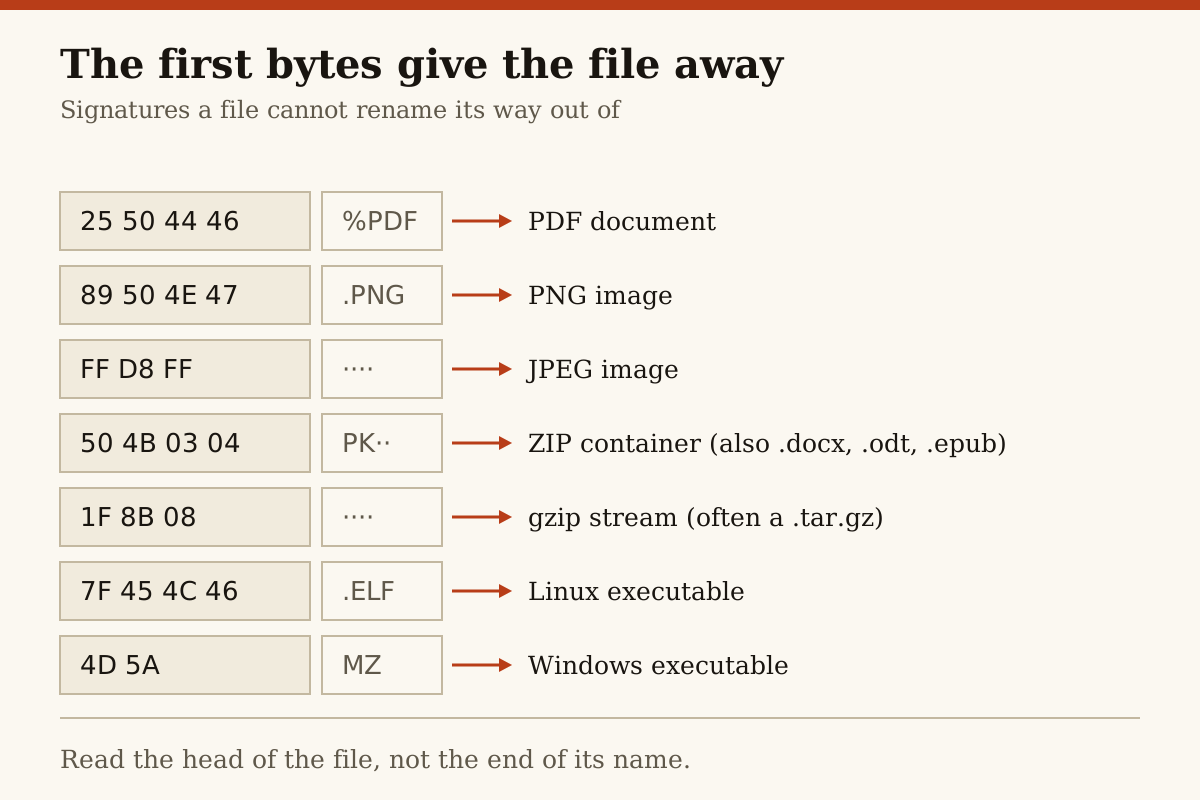
Magic numbers are short and hexadecimal, so you might as well know the most common ones. When you picture them in an editor, you'll see this order for the common signatures.
- %PDF- [PDF]
- 50 4B 03 04, or PK [ZIP]
- 4D 5A, or MZ [Windows executable]
- 7F 45 4C 46, or \x7fELF [ELF executable]
- 89 50 4E 47 0D 0A 1A 0A [PNG]
- FF D8 FF [JPEG]
If the file starts with one of these byte strings, odds are the format is shown on that same line. Outside of that short list, the magic number doesn't necessarily confirm the file type. You might get a match and still have restricted or damaged content.
Use the Operating-System Tools
The file command on Unix-like operating systems uses, as part of its identification process, whether the file begins with a certain magic byte. This is faster and more accurate than human inspection.
The command works by reading a magic database. On Unix-like systems, /etc/magic is the magic database, but it can be supplied by the user with file -m or file -M. The database gives the command its list of file types to hunt, including byte offsets and byte lengths. When it hits a match, it prints the file name, the path, and the message associated with the magic number.
The magic numbers let file tell you the file is a JPEG even if the extension or name claims something else. They also power the file command's in-band identification of file formats in contexts where format labels are unclear, such as multimedia and audio files.
When the Bytes Do Not Match the Name
The magic numbers are valuable clues, but they aren't enough on their own, as the file's actual type might not always have the given signature. Normally, you should believe the bytes over the file name.
When the file's bytes don't match its name, don't assume something is wrong with the file. The name is more likely mislabeled or the extension is just a disguise. Try opening the file type that matches the bytes, and make sure your operating system has the right software.
When the File Is Not What it First Seems
A file might have been changed, from an approved point such as PDF or JPG, to a restricted format by a virus or simple human error. It might also be an archive or container for more than one file. Some malicious files use different signatures, so treat format mismatches with care.
PDFs, archives, and packages can have another kind of signature after the initial seven bytes. The first bytes might be %PDF-, but they're often not what they seem. The second set of signature bytes tells the real story, but what it says matters more to your next steps than something like a signature look-up tool.
When the Header Is Damaged
Magic numbers are a good place to start, but they aren't magic. If the file has been corupted, tampered with, or the transfer being interrupted, the magic number might not appear at all because there is no header. Truncated files are more likely to start with "unexpected bytes" and give no further pointers.
That's a mark not against the technique, but against inferring a working file where no magic number could be found. The magic number, right or wrong, wasn't there on purpose, so the file itself needs fixing - or might just be botched.
A file needs its container to be complete, so files truncated before the header can't even start their identification magic. "Damaged header" often means "damaged file", but that doesn't mean the file can't be recovered or repaired. Just don't go opening it as anything until you get a clean copy.
Magic numbers aren't magic, but they can work. Start with a guess about what the file should be, and the magic number will give a second opinion. If you don't know, search and signal-stack until the format is clear. Your editor, browser, or operating system can always spotlight or refine the magic number once you have it, but it's normally a safe guess to start.
However you read it, we see magic numbers as witnesses, not verdicts. A look at the bytes narrows the guess, but needs an operating system and user to play a part in opening the content. Follow the signature, but act mindful that the file may have been outsourced or almost made, warranting more checks before opening.
More in Files