When an External Hard Drive Stops Mounting, Your Drive's Health Is On the Clock
When an external hard drive stops mounting, the clock is ticking on your chance to recover files. Photos, videos and documents are at risk, and the first call is whether to keep trying or shut the drive down now to save its data.
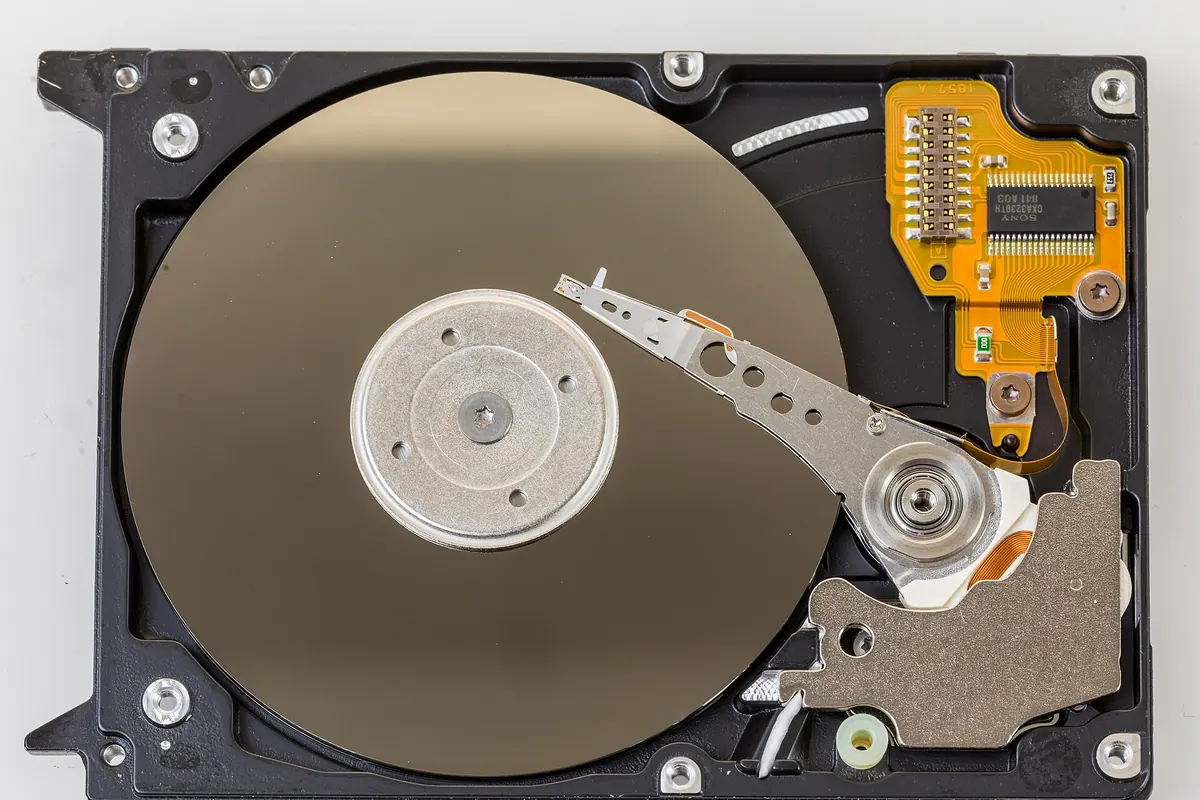
How to know? Look for signs of hardware failure: clicking, grinding, or frequent disconnections. They mean the drive may be self-damaging every time you try to access it. Apple support distinguishes mounting, which makes a drive available, from erasing, which wipes it to let you start over. Using Disk Utility’s repair tools may be the last chance before the disk needs a full erase.
If the drive powers up and spins, the problem may be a cable, port, or connection. Try a different cable, a direct USB port, and eliminate hubs or adapters, as a MacPaw troubleshooting guide suggests.
To check for recoverable filesystem damage, run each of these steps:
- From Finder, click on Disk Utility, select the drive, and click Mount to see if it's visible.
- With the drive still selected, click on First Aid.
- If First Aid doesn't repair all errors, stop for now. For deeper testing, take the next steps only if the drive is physically healthy and stable.
Use the First Aid repair tool, but beware. It may not "fix" an unstable drive, and attempting First Aid could be what makes it fail after seeming to succeed.
If the checks help or the drive is not in failure mode, try these non-destructive recovery steps while adding no risk:
- Make a full byte-to-byte backup of the entire drive, as a Pandora Recovery guide advises. This is your fail-safe to try if recovery steps risk corrupting the original.
- Run data recovery software on the backup, rather than on the original unstable disk, to preview recoverable files.
- After verifying the recoverability of key files, continue to scan the backup, not the original.
If deep troubleshooting could risk turning a partially recoverable drive into a fully unrecoverable failure, take the disk to a pro as soon as you identify the danger.
The trial-and-error game is over for any external drive that needs powering on and off, or that loses and regains connection without user intervention. This is an unstable failure in progress, and it could progress to full failure if you corner the drive.
Even clicking or grinding that happens when you pick up the drive or unplug it is more than an annoyance: it is a sign the drive may not stop failing next time you access it. Avoid any action that risks advancing to a fatal error.
When every non-destructive option has been used, it comes down to whether the drive will run Disk Utility and First Aid long enough for a partial recovery.
If the filesystem becomes unrecoverable, Apple Support notes that the disk may need to be reformatted, which erases all data. It is the decision point of no return: the drive, however successful it has been in the past, was not made to be imagined, mounted, and reformatted.
One attempt means you will never be able to check your other files later. There is no undo erase — even sure as heck, if formatting tools restore an index or a table but you don't confirm your data is intact, it didn't actually recover the files that matter—and you won't notice until the real-work files are gone.
If any of the tests warn you that you have reached the data recovery point, it is too late to turn back the clock. An ambulance couldn't help after fatal errors corrupt the data.
Note that when reformatting failure is the only option, professionals do that only to recover critical final files before losing both them and the drive. You are probably not at that level.
So whatever your trouble is, stop now unless you verify that the drive is still able to run diagnostic protocols with success. Tries are decisive, even the ones that seem to work.
More in Storage