Why Are My Screenshots Blurry? A Step-By-Step Diagnosis
When you post a screenshot only to find it appears fuzzy, it can be hard to pin down the cause. Was the screenshot already soft coming off your screen? Did uploading it add artifacts or blurring? Diagnosing the blur helps you fix it.
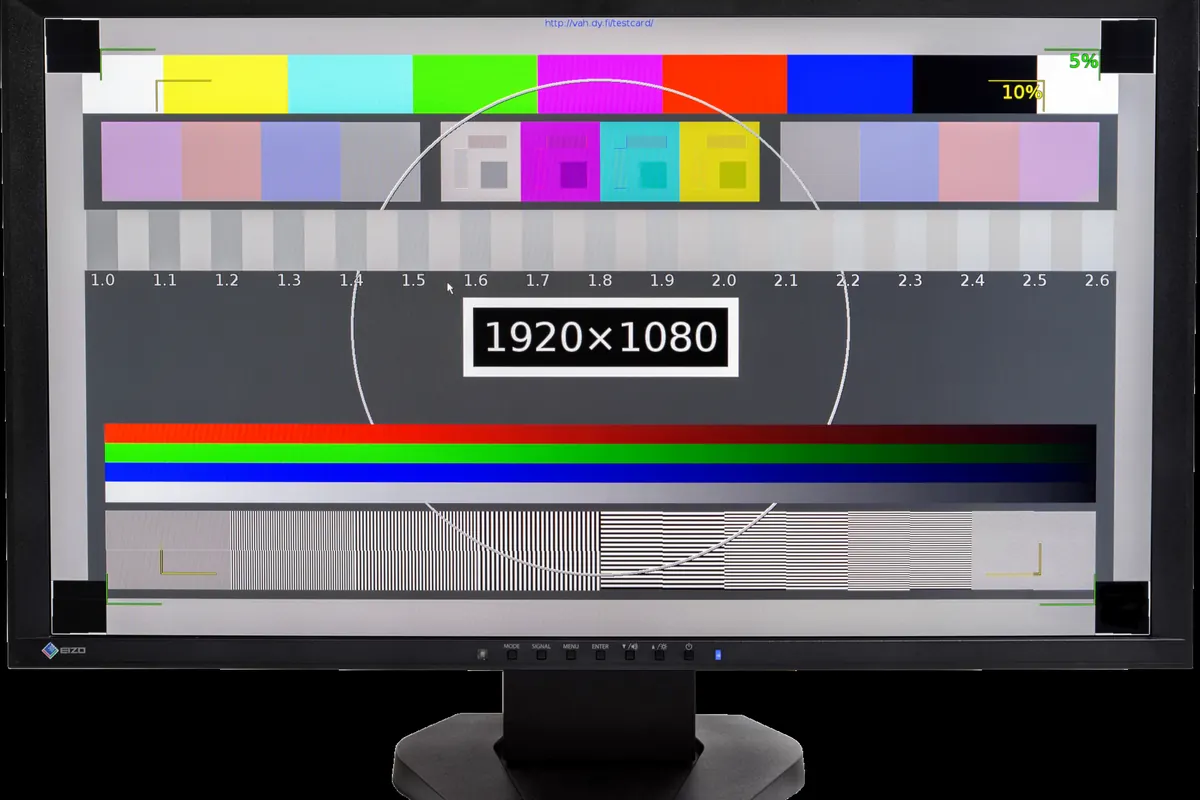
Capture blurriness can begin before the file even exists. Your display is probably softening everything rendered on it right now. Modern screens come with varying pixel counts and DPI settings, and if the desktop resolution or browser zoom is not set to a whole-number scale, the rendering pipeline must interpolate pixels, introducing antialiasing that smears text and hard edges.
Open your display settings now. Is the scale 100%? Are you set to the native resolution of your monitor? Browser zoom and desktop client settings work similarly - if the display scale is anything other than 1x, the screenshot tool is already working with softened source pixels rather than the sharp native-rendered data.
This is not an apocryphal warning about screenshot tools; it is established fact. Sources confirm that low screen resolution, DPI scaling, and antialiasing in the display pipeline can make your entire desktop appear softer, and a screenshot just records that softened state. 1,5,9,10
HiDPI and Retina screens introduce a special case. Did you know the default screenshot on a 2x Retina display is a 1x capture? That means text and UI appear 50% larger than intended on a 2x display, and appear blurry. Sources warn that 1x captures on HiDPI screens are not faithful in resolution or appearance. The fix is to take screenshots at 2x, at the device pixel ratio. After the screen has been rendered at its native resolution, you still need to save that sharp capture as a lossless PNG file, instead of compressing it to a JPEG.
Display scaling aside, many screenshots are picked apart at resizing, or by the wrong image format. A JPEG screenshot is lossy, losing quality; a JPEG is tuned by its nature for photos, not UI. EaseUS and imgmin both say JPEG is a weak choice for screenshots or any UI, since expressive text and hard edges do not compress well. An uncompressed PNG at the pixel dimensions it was captured is your best shot.
If the screenshot does make it to upload intact, there is a chance it will still get degraded or compressed by the platform. Many apps on many browsers and platforms apply losses or approximations to user uploads in order to save storage and loading time. Google Photos degrades uploads above 16MP; Alibaba's look at screenshot tools shows that image upload pipelines in CMSs, blogs, and chat apps are often optimizing for photos, not UI, and applying the wrong kind of auto-compression or format conversion. Google Photos and other platforms may stretch, compress, or recompress an uploaded screenshot.
This is why the crucial step is to determine where the blur entered. Take screenshots that are unaltered after capture. Import the original PNG file, at its exact native dimensions, and no further processing. Is the screenshot blurred in comparison with the view in a browser or in a document? Is the original PNG on your machine sharp compared with the softening one you see shared online? If your screenshot is meeting its end online before it got blurry, the blur may be from a CMS or chat app; if the screenshot is too soft two seconds after capture, it was probably softened at the display stage, during rendering.
On a high-DPI monitor, all screenshot tools work with the rendered pixels, not the ideal screen pixels you'd expect. A tool that captures a screen at 1x is already off. To do better, many capture tools give you an option to capture at 2x, or at the device pixel ratio, taking the screen pixel for pixel and not interpolating. Save that screenshot with no changes in a lossless PNG.
If the screenshot is blurred soon after you capture it, the cause is not likely to be the capture software, but much earlier: at the rendering stage, or at the DPI-scaling stage, when the pixels you see are already an upscaled version filtered for display. Open the screenshot in its native resolution, 100% zoom, and authenticate how it looks. If the pixels are blurred, you probably have a moving-target screen, perhaps overscaled, underscaled, or high-DPI. Try using built-in display scaling to get to an integer scale (100% or 200%), or try a capture tool that captures at 2x.
More in Imaging